-
Stativ a záběr
Tripod and framing
Dej iPhone na stativ a najdi záběr, ve kterém se něco pomalu mění: mraky, světlo, stíny, provoz. Na dlouhý záznam připoj nabíječku.
Put your iPhone on a tripod and find a scene where something changes slowly: clouds, light, shadows, traffic. For long recordings connect a charger.
-
Interval
Ulice a lidé 0,5–1 s, mraky 2–3 s, západ slunce 3–5 s, stíny v krajině 5–10 s. Hodina při intervalu 2 s dá 1 800 snímků, tedy minutu videa při 30 fps. Pro 8K a 6K zvol interval aspoň 1,5 s.
Streets and people 0.5–1 s, clouds 2–3 s, sunsets 3–5 s, shadows over a landscape 5–10 s. One hour at a 2 s interval gives 1,800 frames – one minute of video at 30 fps. For 8K and 6K use an interval of at least 1.5 s.
-
Zámky
Locks
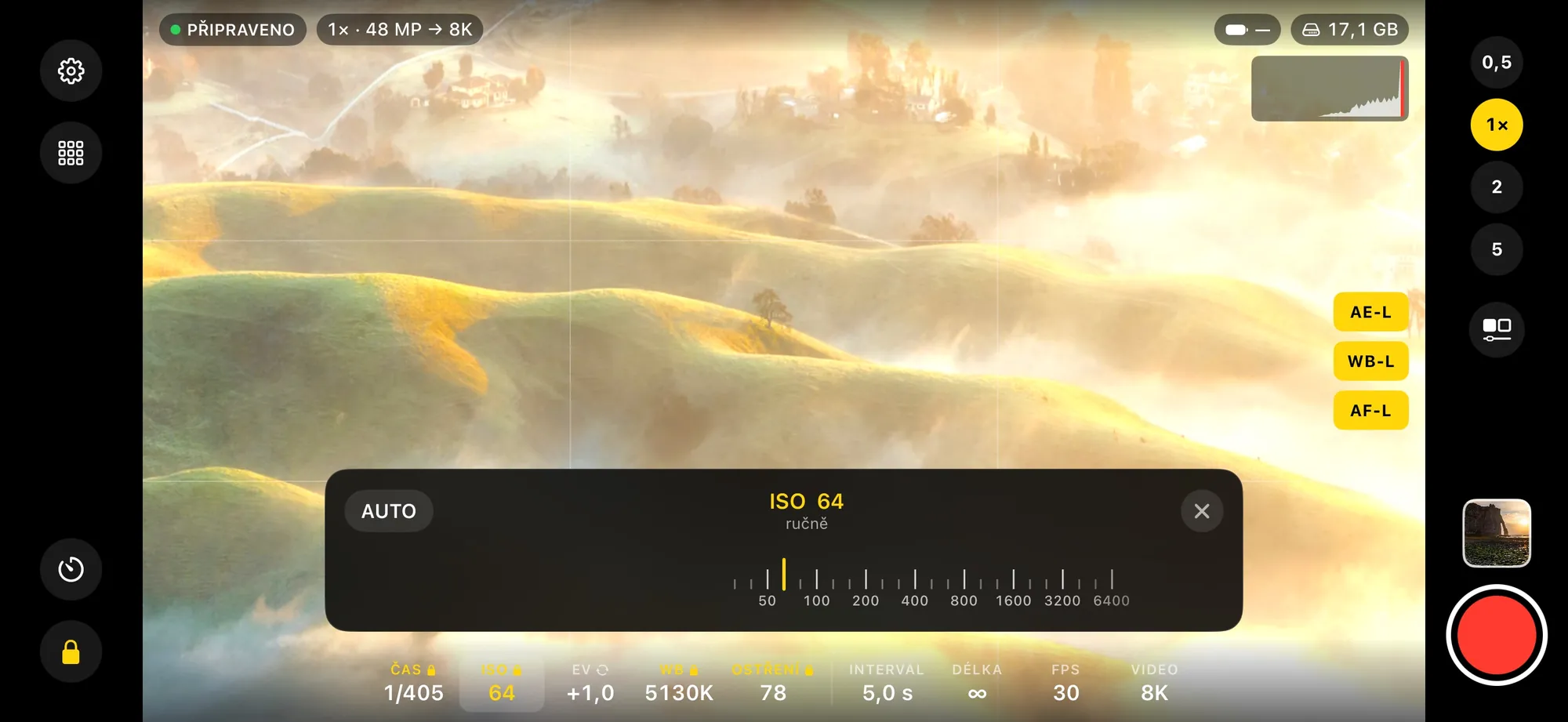
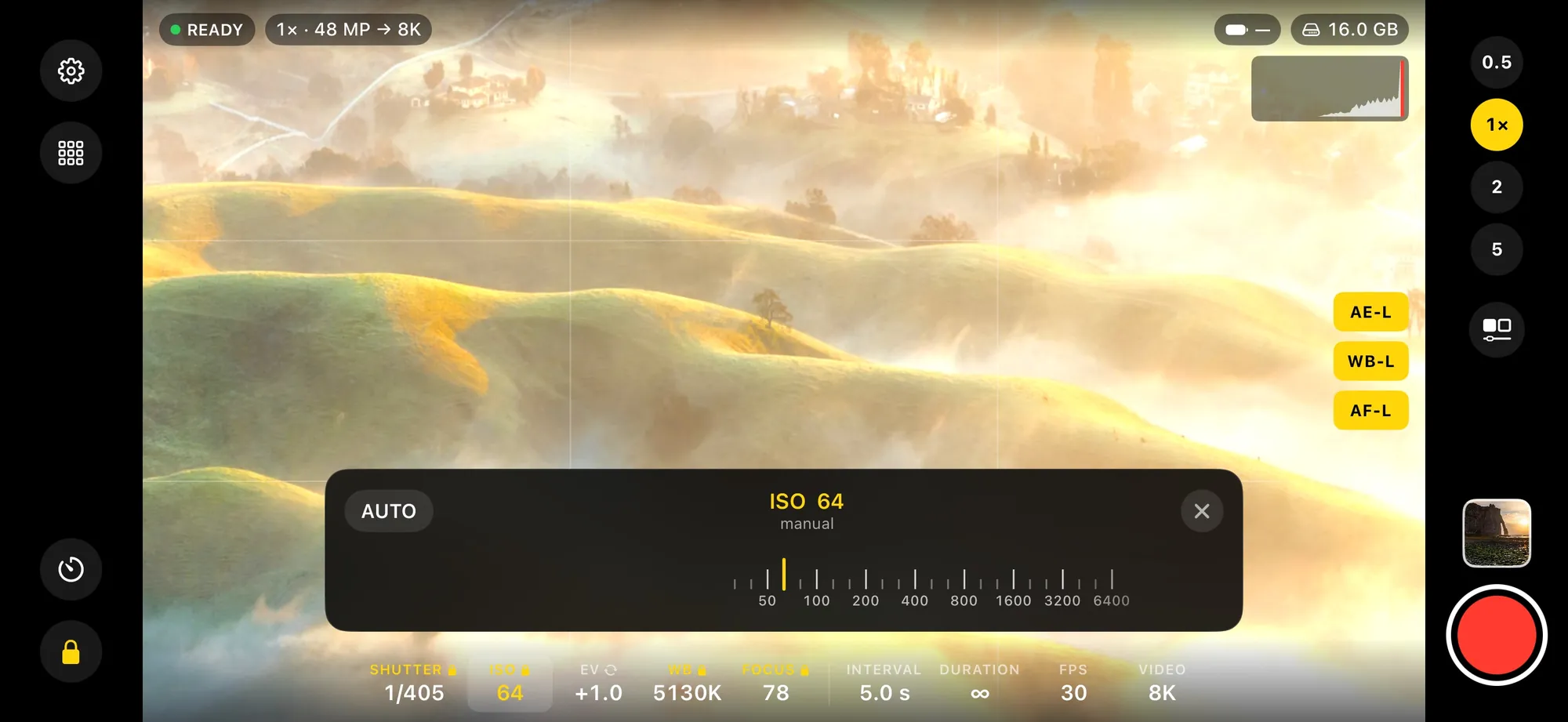
Zamkni expozici (AE-L), bílou (WB-L) a ostření (AF-L), ať video nebliká. Na západ slunce nastav pevné ISO – čas pak aplikace dopočítává plynule.
Lock exposure (AE-L), white balance (WB-L) and focus (AF-L) so the video doesn't flicker. For a sunset set a fixed ISO – the app then adapts the shutter smoothly.
-
Záznam
Recording
Spusť záznam, odpočet nebo naplánovaný start. Displej se ztmaví, klepnutím ho rozsvítíš. Telefon nezamykej a nepřepínej do jiné aplikace – iOS by záznam ukončil (video se uloží).
Start recording, a countdown or a scheduled start. The display dims; tap to wake it. Don't lock the phone or switch apps – iOS would end the recording (the video is saved).
-
Úpravy a export
Edit and export
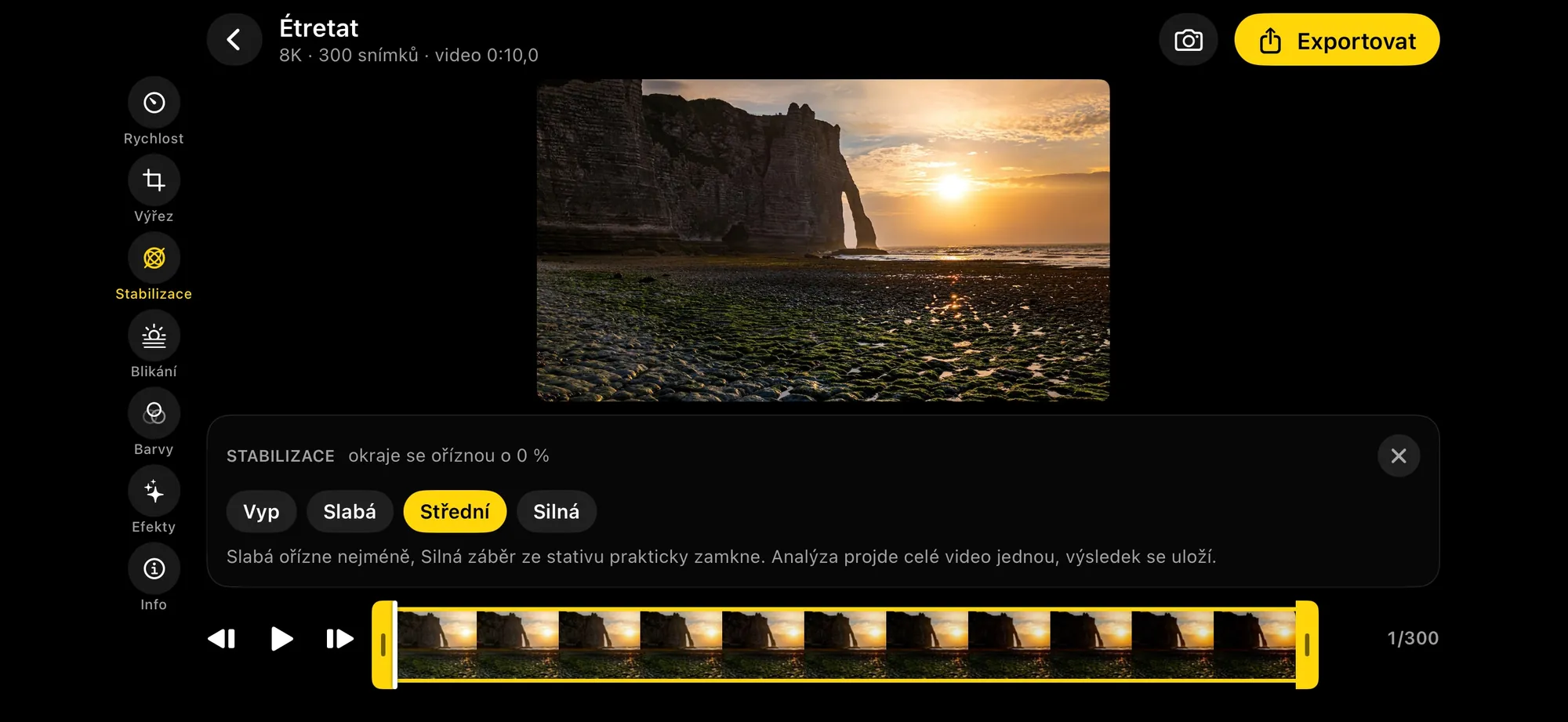
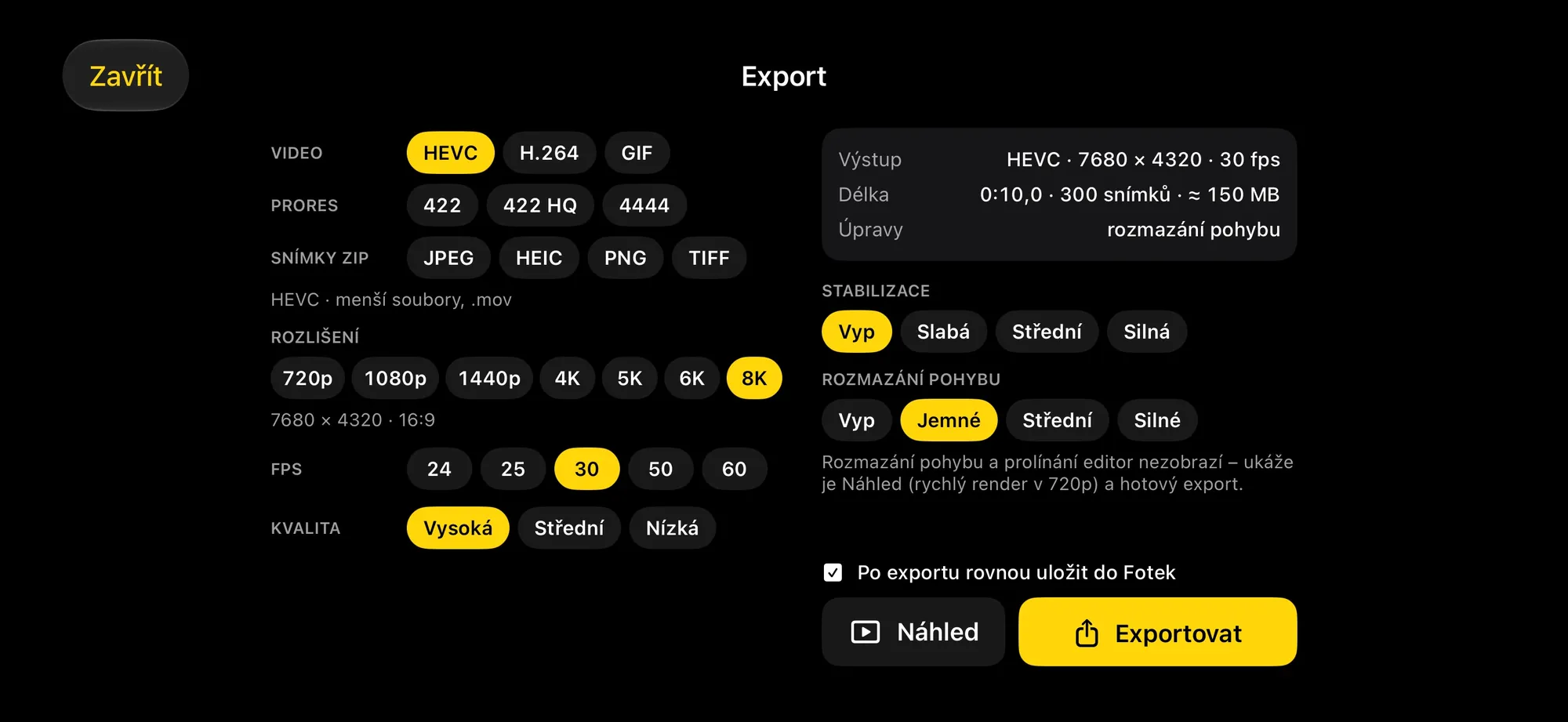
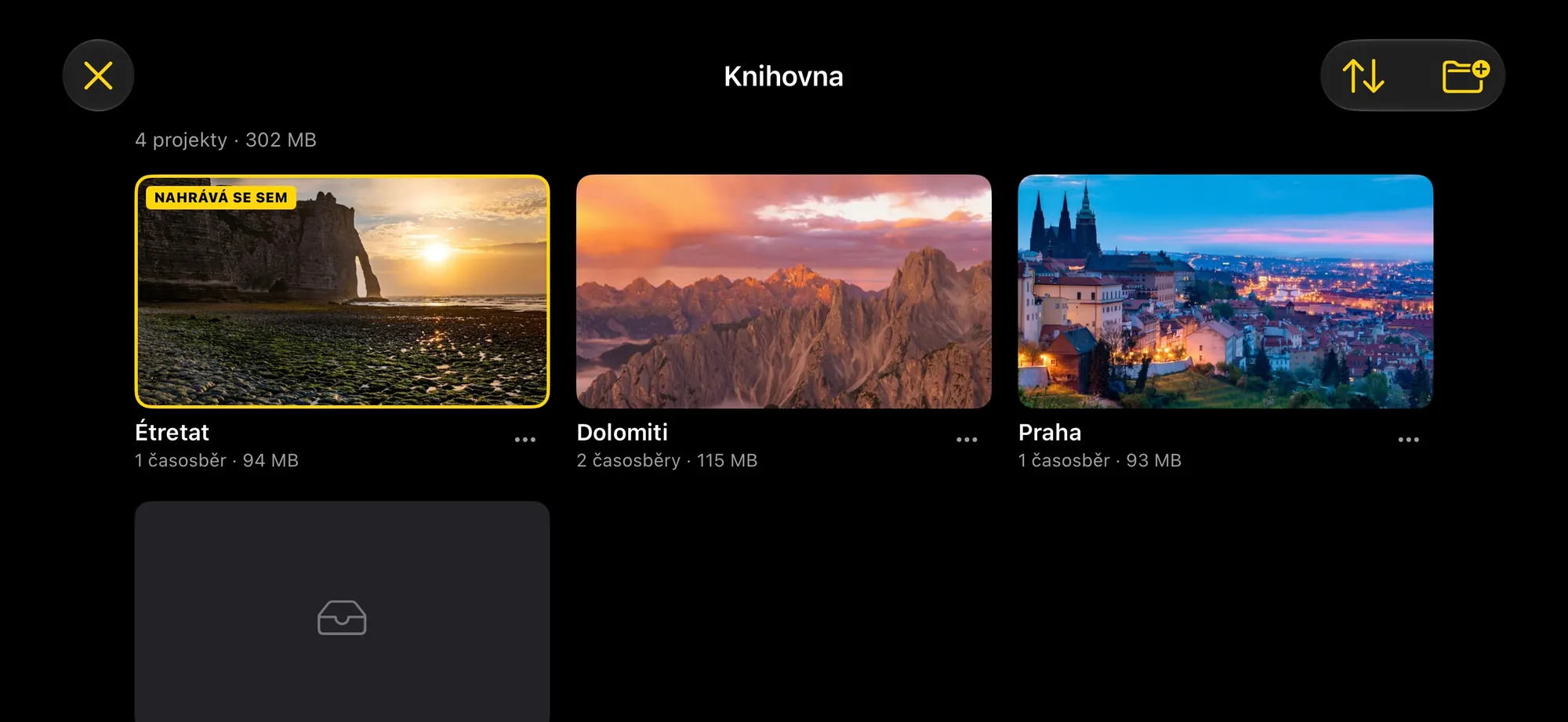
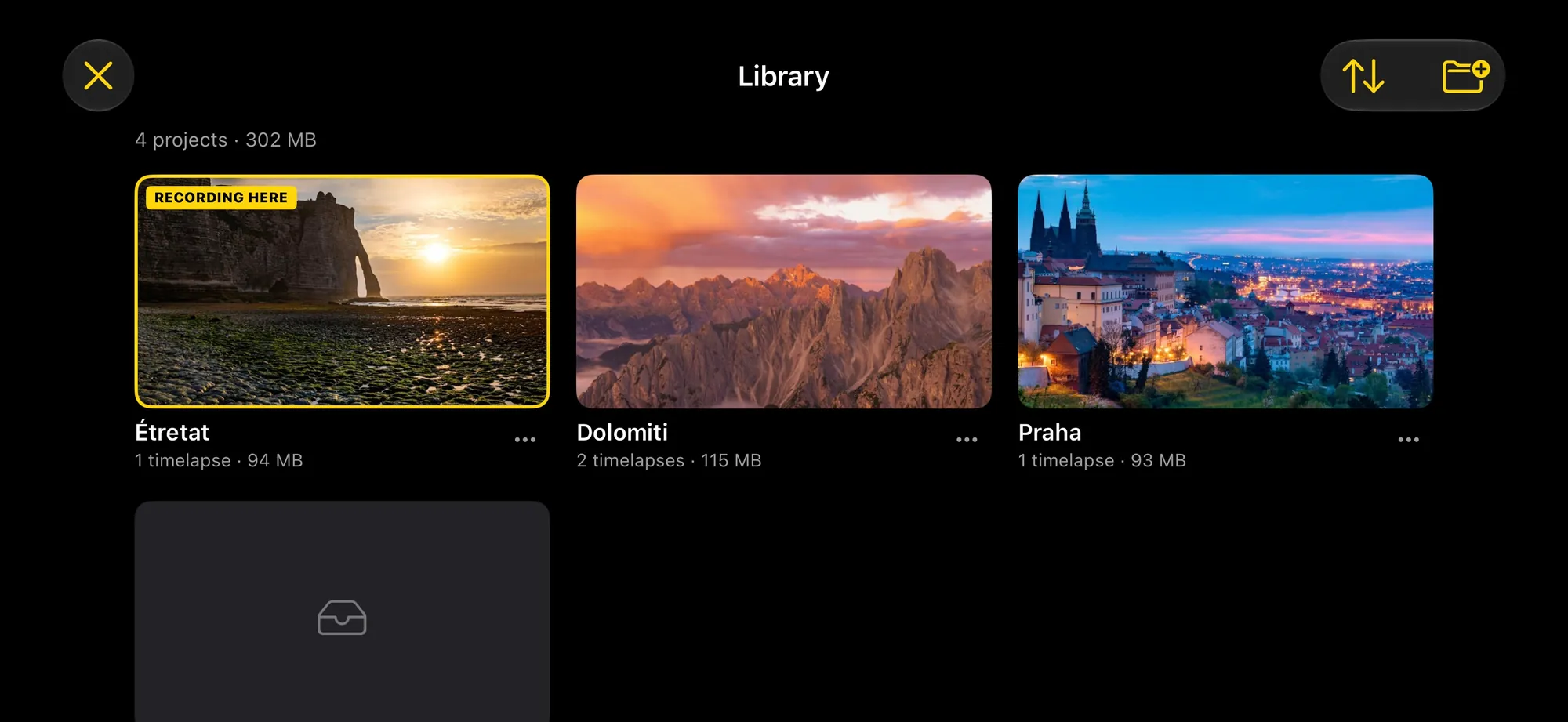
V knihovně otevři časosběr, nastav rychlost, výřez, stabilizaci, blikání a barvy a exportuj – rovnou do Fotek, nebo jako soubor.
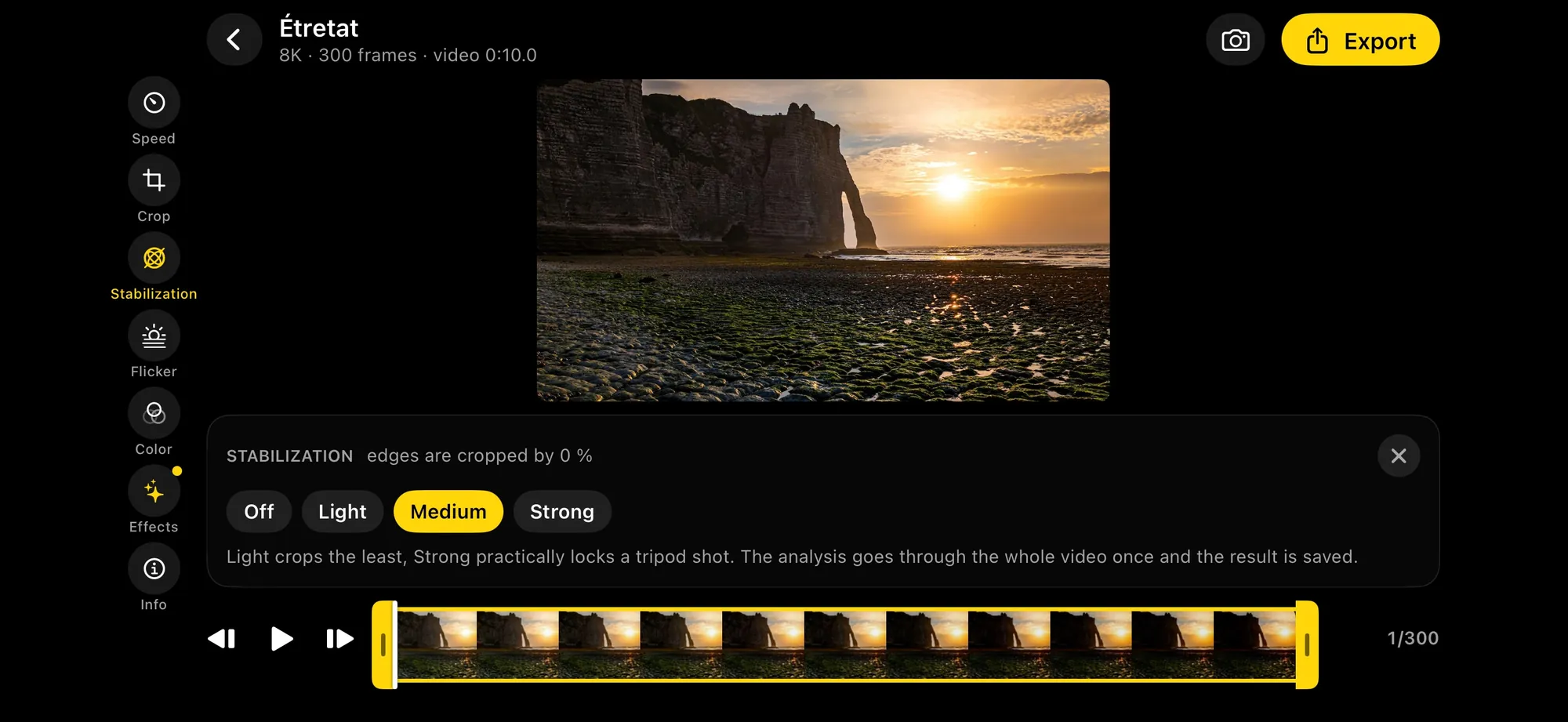
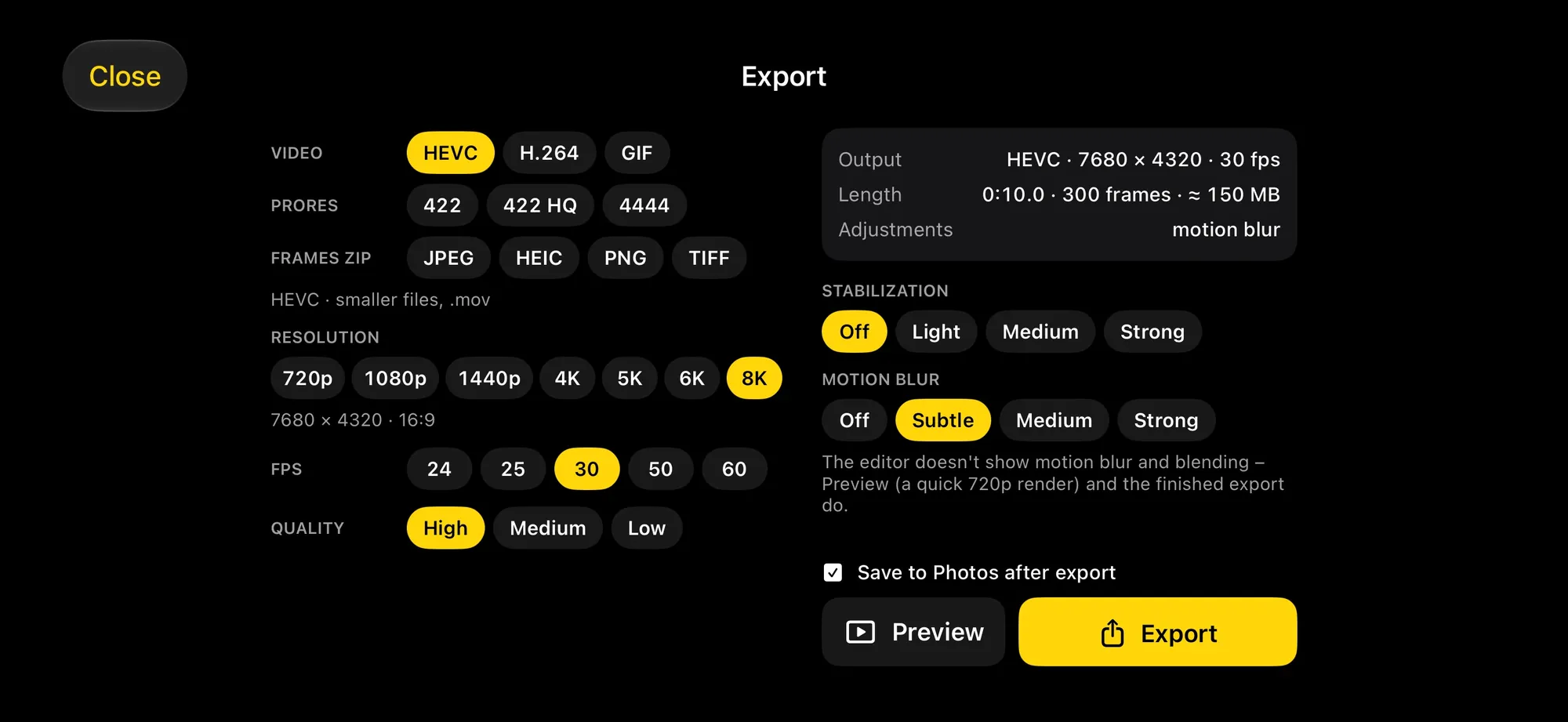
Open the timelapse in the library, set speed, crop, stabilization, deflicker and color, then export – straight to Photos or as a file.
Co je zdarma a co odemkne Pro?What's free and what does Pro unlock?
Zdarma je plně funkční verze s hlavním objektivem 1× a masterem Full HD – zámky, časování, projekty i export bez omezení. Jednorázový nákup Pro (bez předplatného) odemkne objektivy 0,5×, 2× a 4×/5×, master 4K, 6K a 8K, profily HDR a Log a RAW (DNG).
The free version is fully functional with the main 1× lens and a Full HD master – locks, timing, projects and export without limits. A one-time Pro purchase (no subscription) unlocks the 0.5×, 2× and 4×/5× lenses, 4K, 6K and 8K masters, the HDR and Log profiles and RAW (DNG).
Jak obnovím nákup Pro na novém iPhonu?How do I restore Pro on a new iPhone?
Přihlas se stejným Apple účtem a v aplikaci otevři Nastavení → Obnovit nákupy. Pro se odemkne bez nové platby.
Sign in with the same Apple Account and in the app open Settings → Restore purchases. Pro unlocks without paying again.
K čemu jsou zámky AE-L, WB-L a AF-L?What are the AE-L, WB-L and AF-L locks for?
Automatika u každého snímku měří znovu a výsledek se nepatrně liší – ve videu to bliká. AE-L zamkne čas i ISO, WB-L bílou, AF-L ostření. Když na stupnici ISO nastavíš pevné ISO, čas dopočítává aplikace sama, plynule (při záznamu nejvýš o 0,1 EV za sekundu). Ručně nastavený čas funguje obráceně: ISO se dopočítává.
Auto mode meters every frame again and the result varies slightly – the video flickers. AE-L locks shutter and ISO, WB-L white balance, AF-L focus. If you set a fixed ISO on the ISO scale, the app adapts the shutter smoothly by itself (at most 0.1 EV per second while recording). A manual shutter works the other way round: the ISO adapts.
Video bliká, i když mám všechno zamčenéThe video flickers even with everything locked
iPhone každou 48MP fotku zpracuje trochu jinak – hlavně ve stínech a v jemné kresbě (zrno, odšumění). V editoru zapni Blikání: Slabá srovná tóny mezi snímky, Střední a Silná navíc zprůměrují mihotající zrno ze 3 / 5 snímků. Tónovou korekci vidíš hned v editoru, vyhlazení zrna ukáže Náhled nebo export.
Your iPhone processes every 48 MP photo a little differently – mostly in the shadows and fine detail (grain, noise reduction). In the editor turn on Flicker: Light evens out the tones between frames, Medium and Strong also average flickering grain over 3 / 5 frames. The tone correction shows right away in the editor; grain smoothing shows in Preview or the export.
48 MP, nebo 12 MP? Proč nemám 8K?48 MP or 12 MP? Why don't I get 8K?
Od hranice intervalu (výchozí 1,5 s) se snímá v plných 48 MP, při kratším intervalu ve 12 MP – zpracování 48MP snímku by nestihlo. Z 12 MP vznikne nejvýš master 4K, nic se nedopočítává; 6K a 8K potřebují 48 MP, takže pro ně prodluž interval. Objektiv 2× (ořez z hlavního) snímá vždy 12 MP. Profily HDR a Log mají master nejvýš 4K.
From the interval threshold (1.5 s by default) the camera shoots the full 48 MP; with a shorter interval 12 MP – processing a 48 MP frame wouldn't keep up. 12 MP gives at most a 4K master, nothing is upscaled; 6K and 8K need 48 MP, so use a longer interval for them. The 2× lens (a crop of the main lens) always shoots 12 MP. The HDR and Log profiles have at most a 4K master.
HDR, Apple Log a RAW (DNG)HDR, Apple Log and RAW (DNG)
Profily HDR (HLG) a Apple Log snímají 10bitové snímky z videa. Při exportu zvolíš, jestli barvy zachovat v 10 bitech, nebo převést do běžného Rec.709. RAW (DNG) uloží ke každému snímku i 48MP ProRAW – soubory sdílíš v editoru v Info. RAW zabere hodně místa, asi 75 MB na snímek.
The HDR (HLG) and Apple Log profiles capture 10-bit frames from video. When exporting you choose whether to keep the colors in 10 bits or convert them to standard Rec.709. RAW (DNG) also saves a 48 MP ProRAW file with every frame – share the files in the editor under Info. RAW takes a lot of space, about 75 MB per frame.
Proč je video vždy 16:9?Why is the video always 16:9?
Senzor snímá 4:3, video je vždy 16:9 (8K ve 4:3 by kodér nezvládl). Náhled ukazuje přesně to, co se nahraje. Pás 16:9 posuneš nahoru nebo dolů v Pomůckách (ikona mřížky vlevo). Jiný poměr (9:16, 1:1, 4:5…) nastavíš v editoru ve Výřezu.
The sensor captures 4:3, the video is always 16:9 (the encoder couldn't do 8K in 4:3). The preview shows exactly what gets recorded. Move the 16:9 band up or down in Overlays (the grid icon on the left). Set a different aspect ratio (9:16, 1:1, 4:5…) in the editor under Crop.
Můžu během záznamu zamknout telefon?Can I lock the phone while recording?
iOS nedovolí snímat na pozadí. Zamčení displeje nebo přepnutí do jiné aplikace záznam korektně ukončí a video se uloží. Upozornění systému záznam nepřeruší. Displej se během záznamu sám ztmaví na 1 % a zčerná, takže šetří baterii i teplo.
iOS doesn't allow capturing in the background. Locking the screen or switching to another app ends the recording properly and the video is saved. System alerts don't interrupt it. While recording the display dims to 1 % and goes black on its own, saving battery and heat.
Teplo, baterie a místoHeat, battery and storage
Při vysoké teplotě aplikace varuje, při kritické záznam pozastaví a po vychladnutí pokračuje. Pod 10 % baterie varuje, na 5 % záznam ukončí. Pod 2 GB volného místa záznam ukončí. Na dlouhé záznamy připoj nabíječku a dej telefon do stínu.
At a high temperature the app warns you; at a critical one it pauses recording and continues once the phone cools down. Below 10 % battery it warns you, at 5 % it stops recording. With less than 2 GB free it stops recording. For long recordings connect a charger and keep the phone in the shade.
Aplikace spadla nebo se vybila baterieThe app crashed or the battery died
Video se zapisuje po fragmentech zhruba každých 10 s reálného času. Po pádu aplikace nabídne obnovení – ztratí se nejvýš poslední snímek.
The video is written in fragments roughly every 10 s of real time. After a crash the app offers recovery – at most the last frame is lost.
Video se neuložilo do Fotek nebo export selhalThe video wasn't saved to Photos or the export failed
Na konci exportu aplikace ukáže, jestli se video uložilo, a když ne, proč (třeba plné úložiště nebo chybějící povolení k Fotkám). Když Fotky video nepřijmou – například 8K na iPhonu, který ho neumí přehrát – nabídne kopii ve 4K. Když export selže, klepni na Poslat vývojáři: e-mail obsahuje popis chyby a pomůže ji rychle najít.
At the end of the export the app shows whether the video was saved and, if not, why (for example full storage or missing Photos permission). If Photos doesn't accept the video – such as 8K on an iPhone that can't play it – the app offers a 4K copy. If an export fails, tap Send to developer: the email describes the error and helps us find it quickly.
Jak uvolnit místo v iPhonu? (archiv v iCloud Drive)How do I free up space? (iCloud Drive archive)
Podrž v knihovně časosběr (nebo celý projekt) a zvol Archivovat do iCloudu. Originál se přesune do iCloud Drive do složky Timelapse 8K a po nahrání se místo v iPhonu uvolní – v knihovně zůstane náhled. Klepnutím ho zase stáhneš. Smazáním časosběru se smaže i archiv.
Long-press a timelapse (or a whole project) in the library and choose Archive to iCloud. The original moves to iCloud Drive into the Timelapse 8K folder, and once it's uploaded the space on your iPhone is freed – the thumbnail stays in the library. Tap it to download it again. Deleting the timelapse deletes the archive too.
Změní úpravy původní záznam?Do edits change the original recording?
Ne. Výřez, rychlost, směr, poměr stran, stabilizace, odstranění blikání i barvy se ukládají jako nastavení a uplatní se až při exportu – originál zůstává beze změny. Export běží na pozadí, ale nikdy souběžně se záznamem.
No. Trim, speed, direction, aspect ratio, stabilization, deflicker and color are saved as settings and applied only on export – the original stays untouched. Export runs in the background, but never at the same time as recording.